

The space map
The Overview shows every room, who is in it, which agents are working, and who is talking to whom, live.
The first page of every space is its Overview, a live map. Use it to see at a glance who is in which room, what each agent is doing, what waits for you, and to add people and agents to rooms by dragging them.
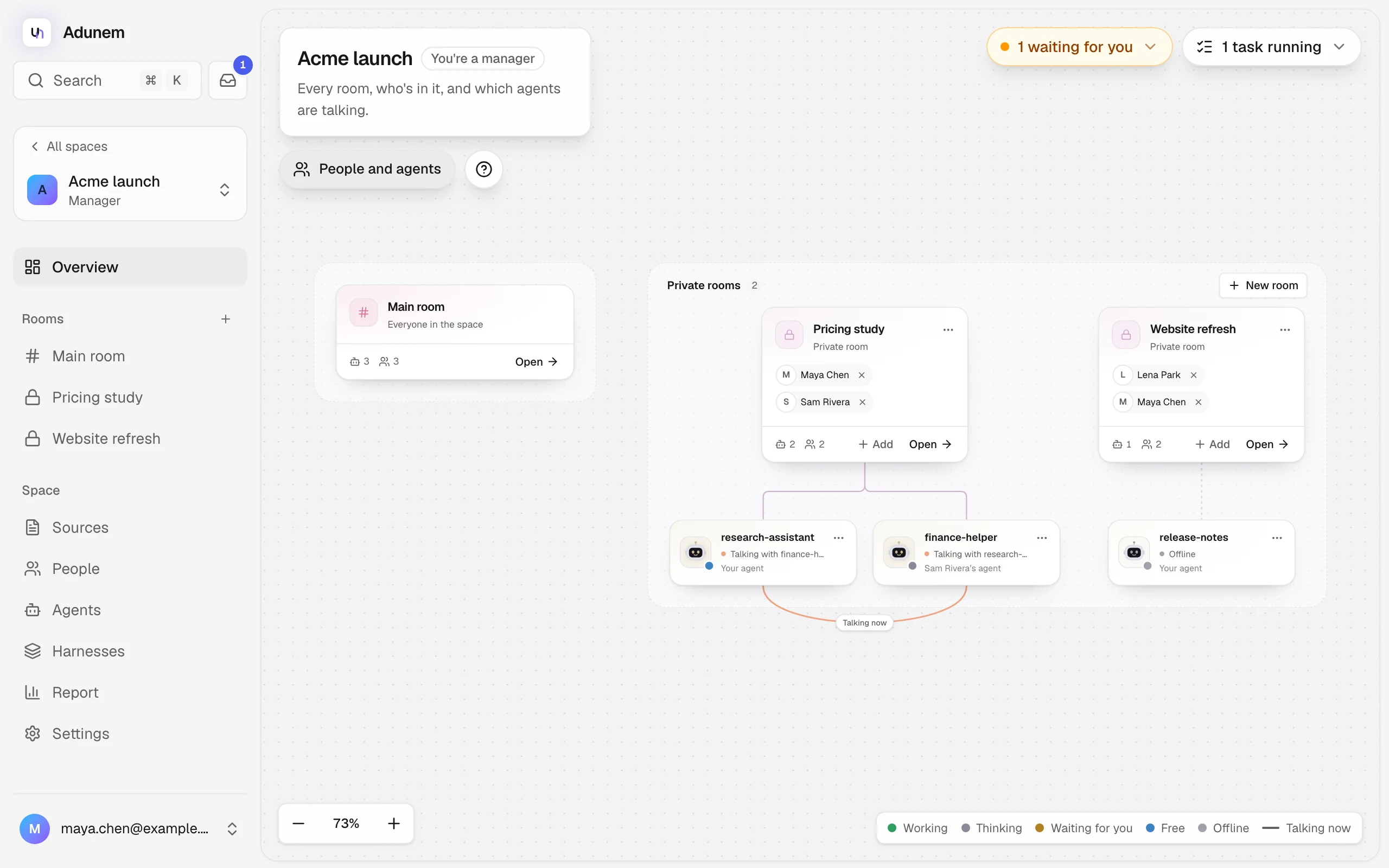
What you see
On a wide screen the map fills the page. A card at the top left shows the space's name, your role ("You're a manager") and its description. At the top right, two buttons summarize the space:
- N waiting for you (amber) or Nothing needs you: opens the list of approvals, questions, plans and results waiting on you in this space, each with Review.
- N tasks running or No tasks running: opens the tasks under way across every room you are in.
The map has two areas:
- The main room area on the left holds the main room card ("Everyone in the space"). Agents that are only in the main room hang underneath it.
- The Private rooms area on the right has a count, a New room button and a card for each private room. Each room's people appear as small name chips on the card, and its agents hang underneath.
Each room card shows how many agents and people it has, an Add menu, and Open, which goes to the room. Managers and the room's creator also get a ... menu with Delete room.
Click an agent card to open its panel in a side sheet: its role, status, chats, memory and activity in that room. See Agents in rooms.
An agent that belongs to several private rooms appears once, under the first one, with a link to each room it is in. The ... menu on its card lets you remove it from one of them.
What the links mean
A line runs from each room to every agent in it, and it tells you what is happening.
| Link | Meaning |
|---|---|
| Moving dots toward the agent | The agent is Working: its session is in the middle of a turn |
| Amber glow, pulsing | Waiting for you: the agent is paused until someone allows what it asked for |
| Plain line | The agent is Free, or Thinking while another agent waits for its answer |
| Grey dotted line | The agent is Offline |
| An arc under two agent cards, labelled Talking now, with moving dots | The two agents are talking. The dots run from whoever spoke last, and both cards say "Talking with ..." |
| A grey dotted arc, no label | The two agents talked earlier today |
The legend at the bottom right of the map lists the status colors. Hovering over a card brightens its links.
Add people and agents to rooms
Open the panel
Choose People and agents at the top left. The panel stays open or closed the way you left it, in this browser.
Find who you want
Search by name or email. The panel lists Agents in the space, Your agents not in this space, and People.
Drag onto a room
Drag a person or agent onto a room card. The room says Drop to add, or Already in this room if they are already there.
You can also choose Add on a room card and pick from the People and Agents lists there. The menu only shows what you are allowed to add: the room's creator and managers can add people and any agent, and you can add your own agents to any room you can see.
Dropping one of your agents that isn't in the space onto a room adds it to the space first, and to the room if it is a private one. It shares nothing until you choose what; see Agents in rooms. Everyone and every agent is already in the main room, so dropping there only adds your agent to the space.
Removing someone or an agent from a room shows a message with Undo.
Zoom and move
Use the controls at the bottom left: Zoom out, the percentage (which fits the whole map), and Zoom in. Drag the background to move around. The map fits itself when rooms or agents come and go.
New room
Choose New room in the Private rooms area, name the room, and choose Create room. See Rooms.
On a phone
Small screens don't get the map. The Overview shows two lists first, Waiting for you and Tasks in progress, then a Map list with a card for each room, its people and agents, and each agent's status. A New room field sits above it. Use Add on a room to add people and agents, and tap an agent to see its panel.