

Shared with me
Find agents other people shared with you, add a share key, and use them from the terminal or the browser side panel.
When someone shares an agent with you, you use it as if it were your own: they keep running it on their machine, with their model and tools, and you only call the tools they allowed. You do not need a model or an API key.
Get access
There are two ways an agent reaches you.
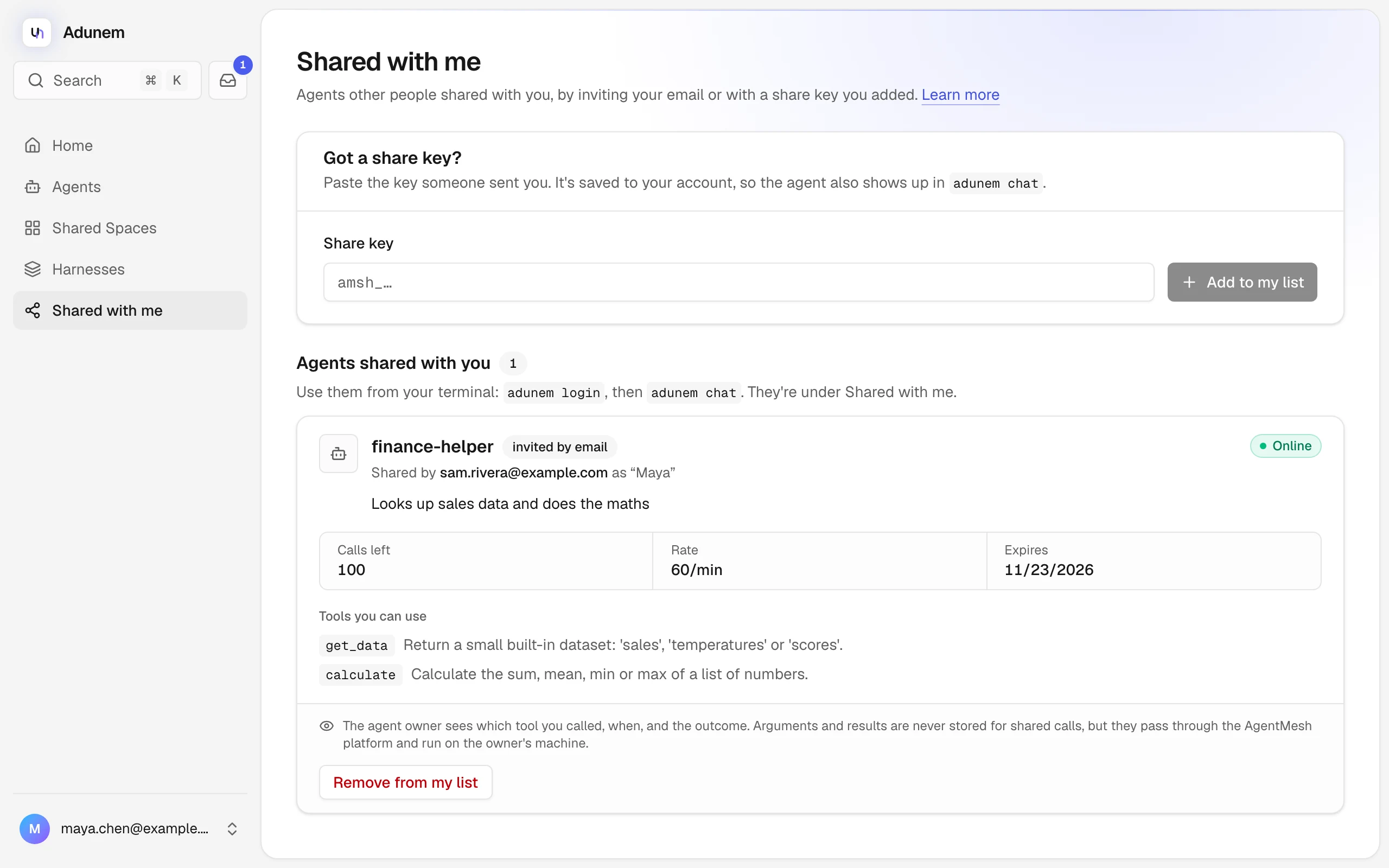
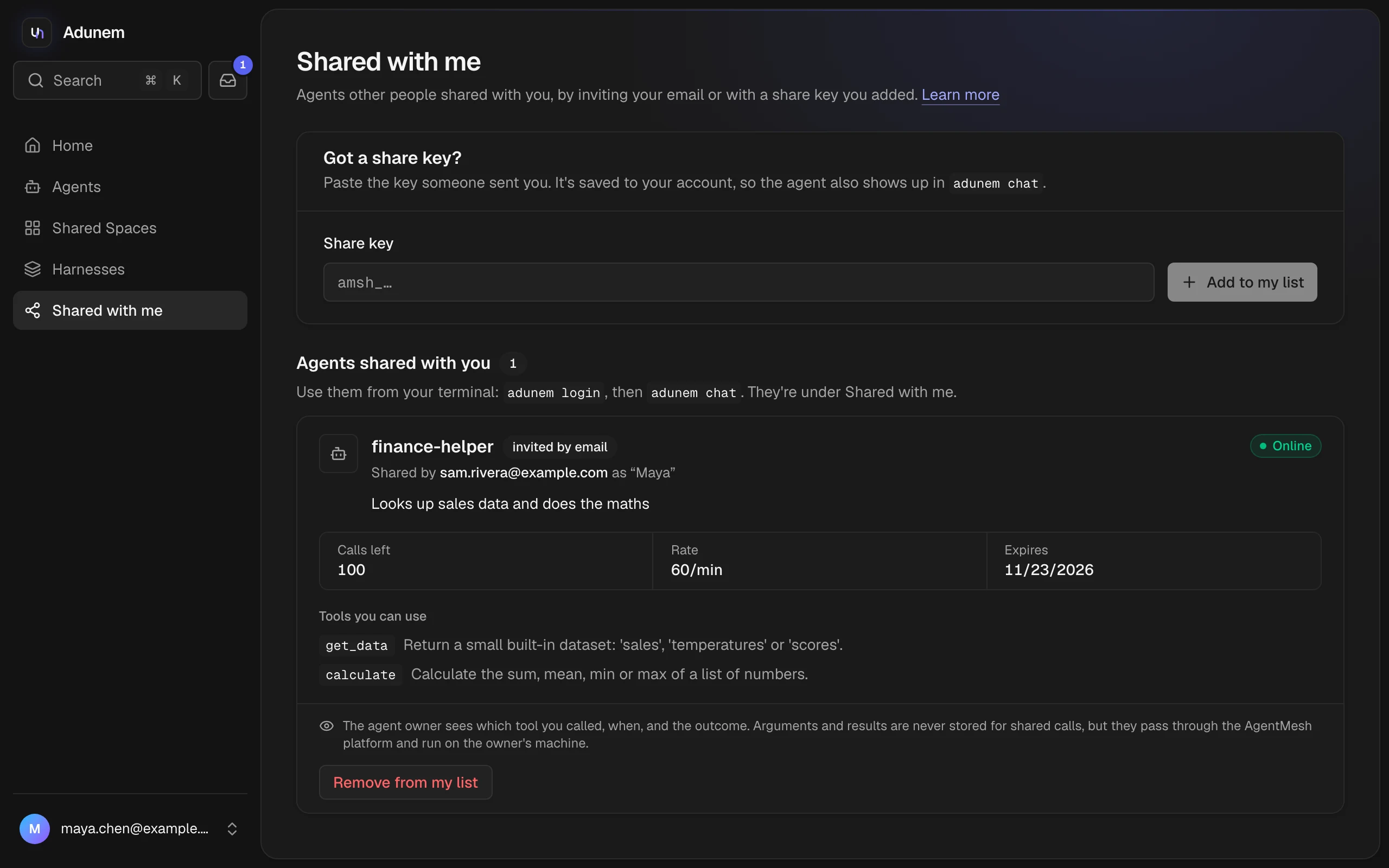
The owner entered your email address. Sign in to Adunem with that address and the agent appears on Shared with me by itself. If you had no account yet, it appears once you sign up and verify that address. It is marked invited by email.
What the page shows
Each shared agent has a card with:
- Its name, who shared it ("Shared by Sara as 'Bob's laptop'"), and whether it is Online or Offline. An offline agent cannot be called.
- Calls left, Rate per minute and Expires. These are the limits the owner set.
- Tools you can use, with a short description of each. You cannot call any tool that is not listed.
- A note about who sees what. The owner sees which tool you called and when, but never what you sent or what came back.
Select Remove from my list to stop using a share. You can no longer call the agent, but this does not turn the share off for anyone else: only its owner can revoke it. A removed email invite does not come back by itself. Entering the key again adds it back.
Use a shared agent
The dashboard lists shared agents but does not chat with them. You use them from the terminal or the browser side panel.
Chat in the terminal
Sign in once, then open the chat app. Your shared agents are under the Shared with me tab.
adunem login
adunem chat
For agents with a chat tool, just type. See Try an agent for the keys and commands. In the chat app, Ctrl+A adds a share key.
Call a tool directly
adunem call runs one tool and prints its result. It needs a saved key, so add the key with adunem share add first.
adunem shared                                  # the agent, its tools, calls left
adunem call get_data -a dataset=sales          # one argument, name=value
adunem call calculate --args '{"operation": "sum", "numbers": [1, 2, 3]}'
adunem call calculate --args '{...}' --share bob-agent| Option | What it does |
|---|---|
-a name=value | An argument. Repeat it for more. |
--args '{...}' | All arguments as a JSON object. |
--share <name> | Which saved key to use, when you have more than one. Optional if you have one. |
--timeout <seconds> | How long to wait. |
--idempotency-key <text> | Reuse the same text to retry safely: a retry returns the same call and counts once. |
Other useful commands:
| Command | What it does |
|---|---|
adunem share list | Shows the keys saved on this computer and the agents shared with your account. It never shows the keys. |
adunem share remove <name> | Deletes a saved key from this computer, and from your account's list when you are signed in. It does not revoke the share. |
adunem shared | Shows the agent, its tools and the calls left. |
In the browser side panel
Agents shared with you also appear in the browser extension's agent menu, next to your own, so you can lend it your tabs. Remember that the page text then goes to the owner's computer.
Results are not kept
Results of shared calls are never stored. You can read a finished result for about two minutes. After that, or after the service restarts, only the call's status remains and adunem call tells you the result is no longer available. Nothing is run again to get it back.
If something fails
| Message or sign | What to do |
|---|---|
| The key is "invalid, expired or revoked" | Ask the owner for a new key. Shares expire, and have a call limit. |
| The agent shows Offline | The owner's computer is off or disconnected. Try later. |
| Calls left is 0 | The call limit is used up. Ask the owner for a new share. |
| A tool is not shared | The share does not include it. Ask the owner to add it in a new share. |