

Share an agent
Give someone access to some of your agent's tools by email or with a key, with a rate, an expiry and a call limit you control.
Sharing lets someone else use your agent without getting access to your computer, your files or your model. You choose which of the agent's tools they may call, how often, for how long and how many times. The calls run on your machine, and the person you share with needs no model, GPU or API key of their own.
The agent must be online for them to call it. See Stay online.
Create a share
Open the agent's Sharing section
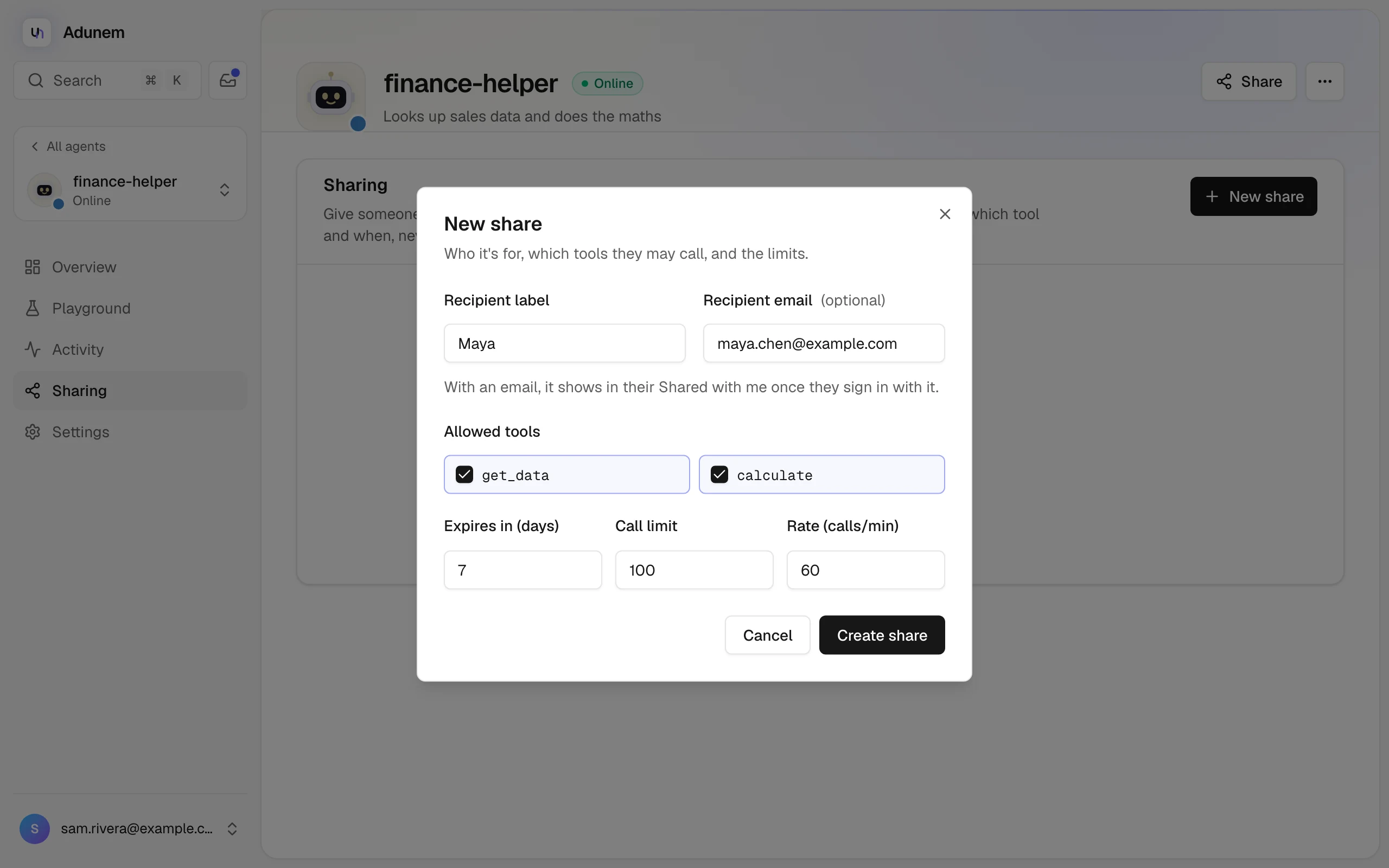
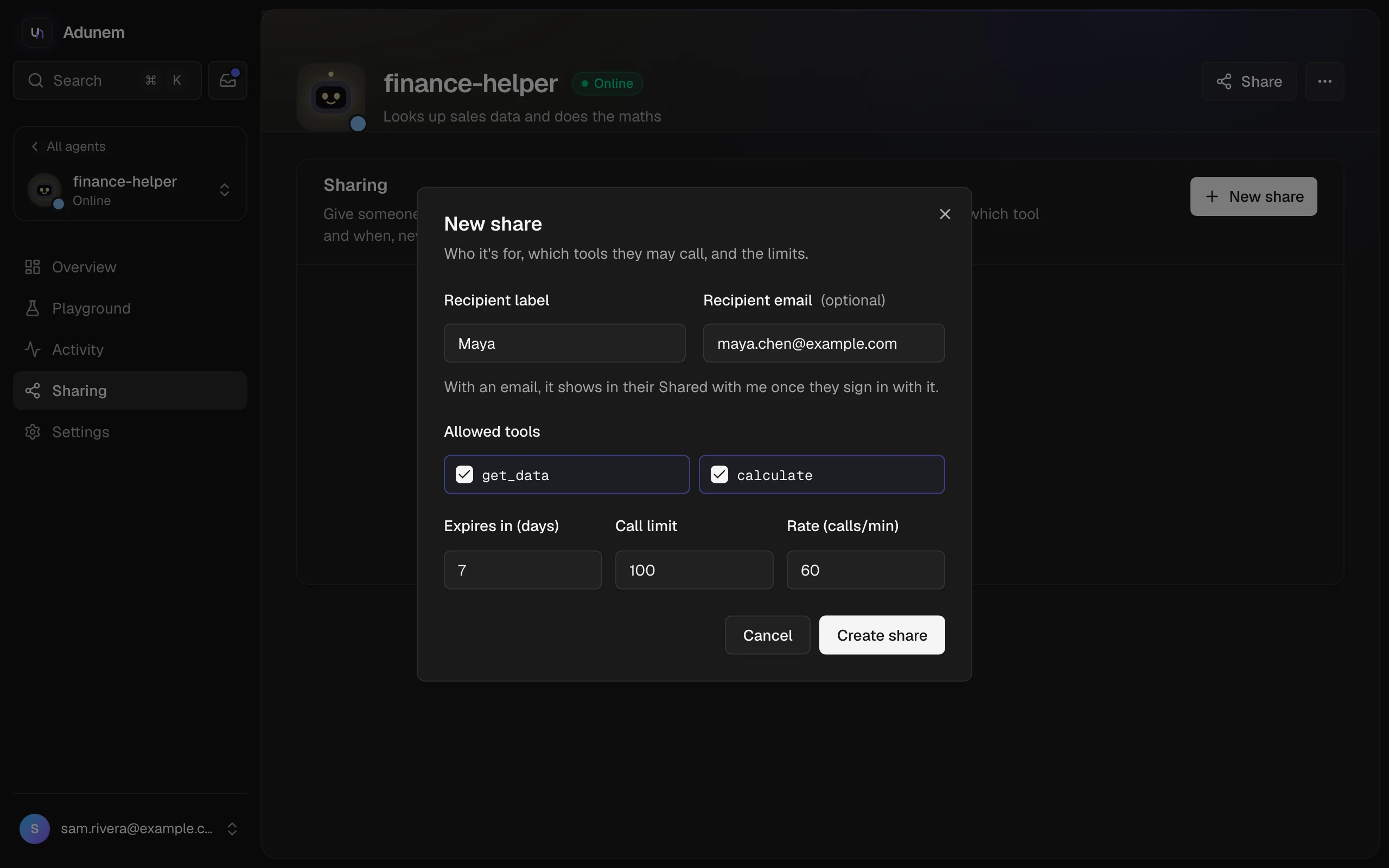
Go to Agents, open the agent and select Share in its header, or the Sharing section. Then select New share. The button is disabled until the agent has connected and reported its tools.
Say who it is for
Give the share a Recipient label, such as "Bob's laptop", so you can recognise it later. Optionally add the Recipient email: with an email, the agent shows up in their Shared with me once they sign in with that address, and they get a notification email.
Choose the tools
Under Allowed tools, tick each tool they may call. Nothing is shared by default. You must pick at least one.
Set the limits
| Limit | Default | Range |
|---|---|---|
| Expires in (days) | 7 | 1 to 90 |
| Call limit | 100 | 1 to 100,000 |
| Rate (calls/min) | 60 | 1 to 60 |
Copy the key
Select Create share. Adunem shows the share key once. Copy it now: it is not shown again. Send it to the person you are sharing with.
A share key is like a password for those tools. Anyone who has it can use it, and it can be forwarded. Only a hash is stored on the server, so Adunem cannot show it to you again. If a key gets out, revoke the share and make a new one.
Share by email or by key
You can combine both, or use only a key.
- By email. The recipient signs in to Adunem with that address and finds the agent under Shared with me, in the dashboard and in
adunem chat, with no key needed. If they have no account yet, it appears once they sign up and verify that address. The email never contains the key. You cannot invite your own address. - By key. The recipient adds the key on their Shared with me page, or runs
adunem share add <name>in a terminal. A share that was made with an email also has a key, which works for anyone who has it.
Manage your shares
The Sharing section lists every share for the agent.
| Column | What it shows |
|---|---|
| Recipient | The label, and either the invited email or the start of the key's ID. Also when it was last used. |
| Tools | The tools this share allows. |
| Usage | Calls used out of the call limit, and the rate per minute. |
| Expires | The expiry date. |
| Status | Active, Limit reached, Expired or Revoked. |
Select the ... menu on a row to change a share:
- Edit label and rate renames the share or changes its rate per minute. It takes effect at once, and the key stays the same. Tools, call limit and expiry cannot be changed: make a new share for that.
- Revoke stops the key right away. New calls are blocked at once, and calls already running get a best-effort cancel. This cannot be undone.
Every call that is accepted counts against the call limit, including one that later fails or times out. Calls that are rejected before they start, because the agent is busy or offline, the tool is not shared, or a limit was reached, are not counted.
See who used it
Open the agent's Activity section and choose Shared to see only the calls that came through shares. Each call shows its tool, status, duration, time and a label such as shared: Bob's laptop #1a2b3c4d. The ID stays the same if you rename the share, so you can follow one share's history.
You see who called which tool and when. You never see what they sent or what came back: arguments and results of shared calls are not stored, even if Payload history is on, and they are not shown to you. The recipient sees their own calls and results live. The data still passes through Adunem to reach your machine, and runs there. The dialog and adunem shared both say this to the people involved.
What a recipient can and cannot do
- They can call only the tools you ticked, on that one agent, within the limits.
- Their key does not work on any other agent, on your account or on anything else of yours.
- Several people holding the same key share one call limit. If you want separate limits, make one share per person.
- Failed attempts to guess keys are rate limited, and errors are generic.