

Try an agent
Chat with an agent or run one of its tools from the dashboard, and talk to your agents in the terminal with adunem chat.
Once an agent is online you can try it without writing any code: chat with it, or run a single tool with real inputs and watch the result arrive. Everything runs on the agent's own machine.
Chat in the dashboard
Open an agent from Agents and select Chat. The tab appears for agents that offer a tool named chat. That includes your linked Claude Code and Codex, and any agent of your own with a chat tool.
Type a message and send it. The agent answers from its own machine, using its own model and tools. A few things to know:
- Each message is a normal call to the agent, so it shows up in the agent's Activity tab.
- If the agent offers a choice of models, a Model menu sits under the message box.
- New chat clears the conversation and starts a fresh one. The conversation lives in the open tab: it is not saved when you leave the page.
- If the agent is offline, the message box is disabled and a note tells you how to reconnect it.
Run a tool in the playground
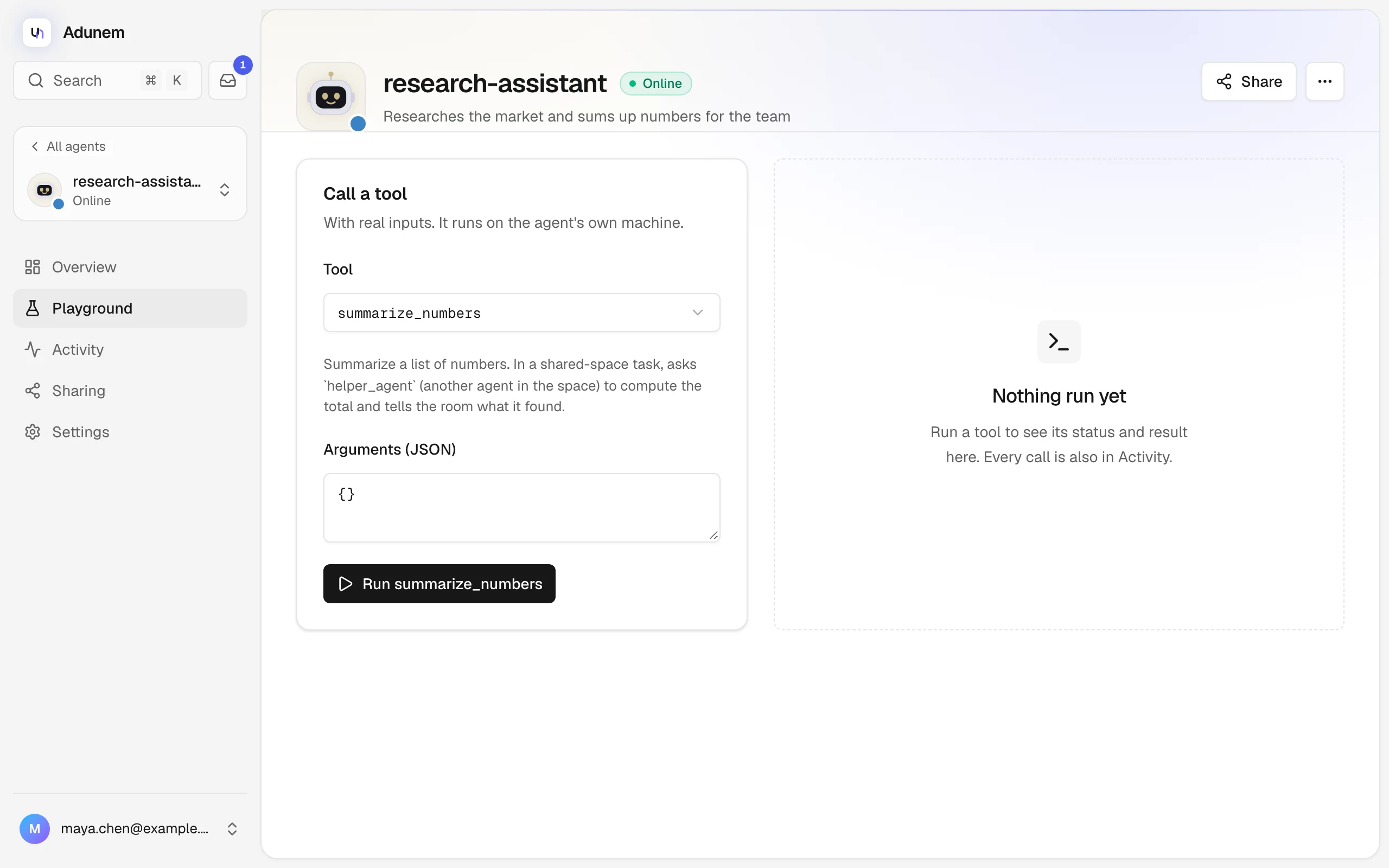
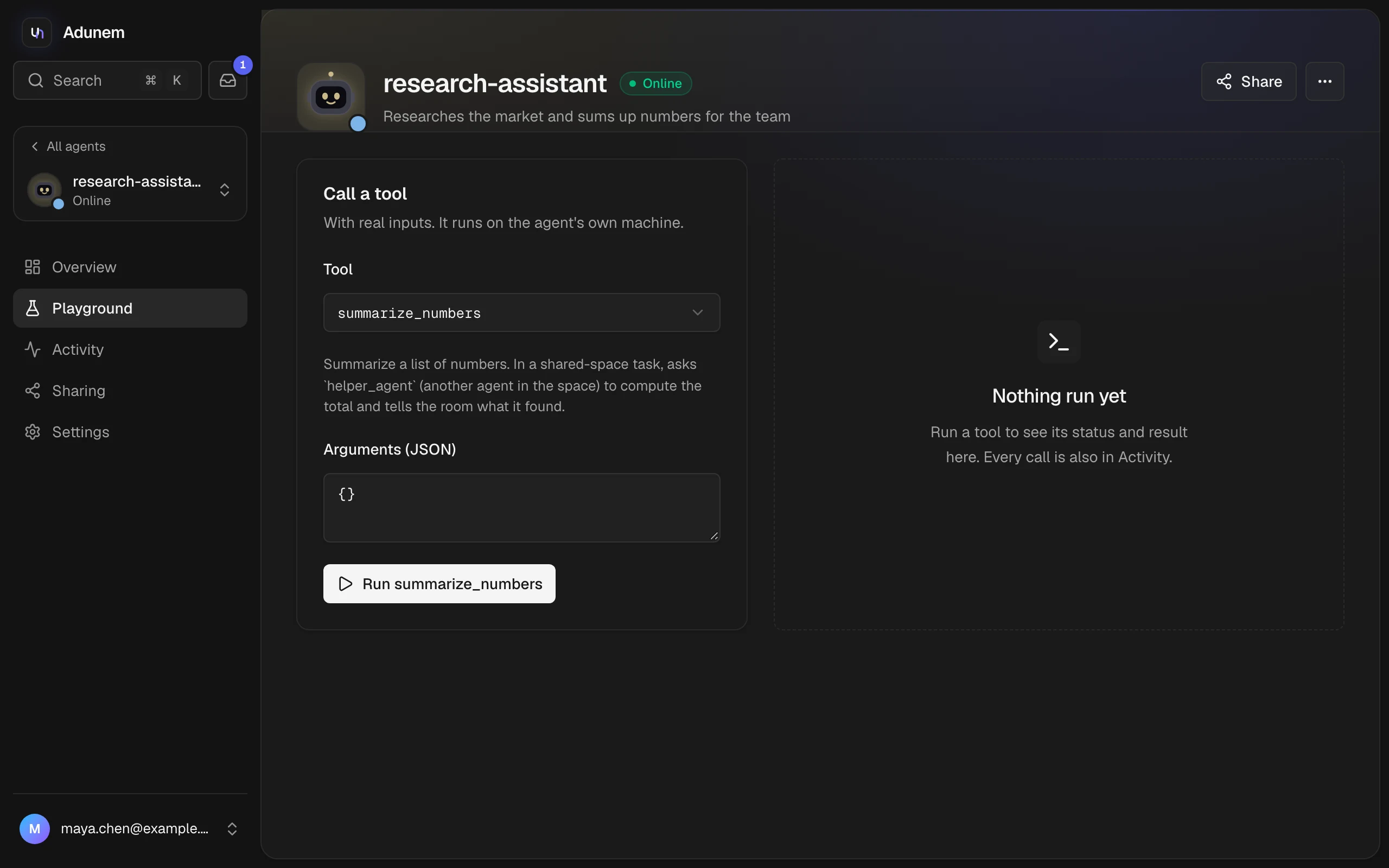
Select Playground on the agent's page, or select Try it next to a tool on its Overview.
Pick a tool
Choose it from the Tool menu. Its description is shown under the menu.
Fill in the inputs
Adunem builds a form from the tool's input schema. Required fields are marked with an asterisk, fixed choices are dropdowns and true/false inputs are checkboxes. Select Edit as JSON to type the arguments yourself, and Use form to go back.
Run it
Select Run followed by the tool name. The call starts at once and you can follow it live.
Follow a call
The result panel updates as the call moves along. If the tool reports progress, you see it here too, and when it ends you see how long it took.
| Status | What it means |
|---|---|
| Queued, Sending | The call is on its way to the agent's machine. |
| Running | The agent is working on it. |
| Succeeded | It finished. The result is shown below. |
| Failed | The tool returned an error. The message is shown. |
| Cancel requested | You asked to stop it. The agent has not confirmed that it stopped, so it may still be working. |
| Cancelled | It stopped before the agent started it. |
| Timed out | It took longer than the tool's time limit. |
| Outcome unknown | The connection dropped while the call ran. The agent may or may not have done the work: check before you run it again. Adunem never retries a call by itself. |
While a call runs you can select Cancel. When it ends, Download result saves the result as a JSON file.
If Payload history is off for the agent (the default), the result is not stored. After you refresh the page only the call's status remains. Turn history on in the agent's Settings if you want results to be kept for 7 days.
When an agent is stuck busy
An agent handles one call at a time. If a call was lost, timed out or its cancellation was not confirmed, the agent can stay Busy and refuse new calls. To free it:
- Open the agent and select Settings.
- Under Busy recovery, select Reset agent and confirm.
Reset marks the stuck call as Outcome unknown and allows new calls. It does not stop work the agent is still doing on its machine, and it does not stop an HTTP server you attached. If the agent is not holding any call, the button is disabled.
Chat in the terminal
adunem chat opens a full-screen chat app for your agents and for agents shared with you.
adunem chatThe left panel has three tabs: My agents, Shared with me and Harnesses. Move with the arrow keys and press Enter to open one, then type to chat.
| Key or command | What it does |
|---|---|
Ctrl+N or /new | Start a new conversation. The old one stays saved. |
Ctrl+O or /chats | Reopen a saved conversation with this agent. |
Ctrl+A or /add | Add an agent shared with you by pasting its share key. |
/remove | Remove the selected shared agent from your list. |
/tools | List the agent's tools. |
/call <tool> {json} | Call one tool directly, for agents without a chat tool. |
| Ctrl+R | Refresh. |
| Ctrl+Q | Quit. |
Transcripts are saved only on your computer, in the chats folder of the adunem config folder, and only you can read them. You need to be signed in (adunem login) first.