

Devices
See the computers and browsers signed in to your account, revoke one, or sign everything out at once.
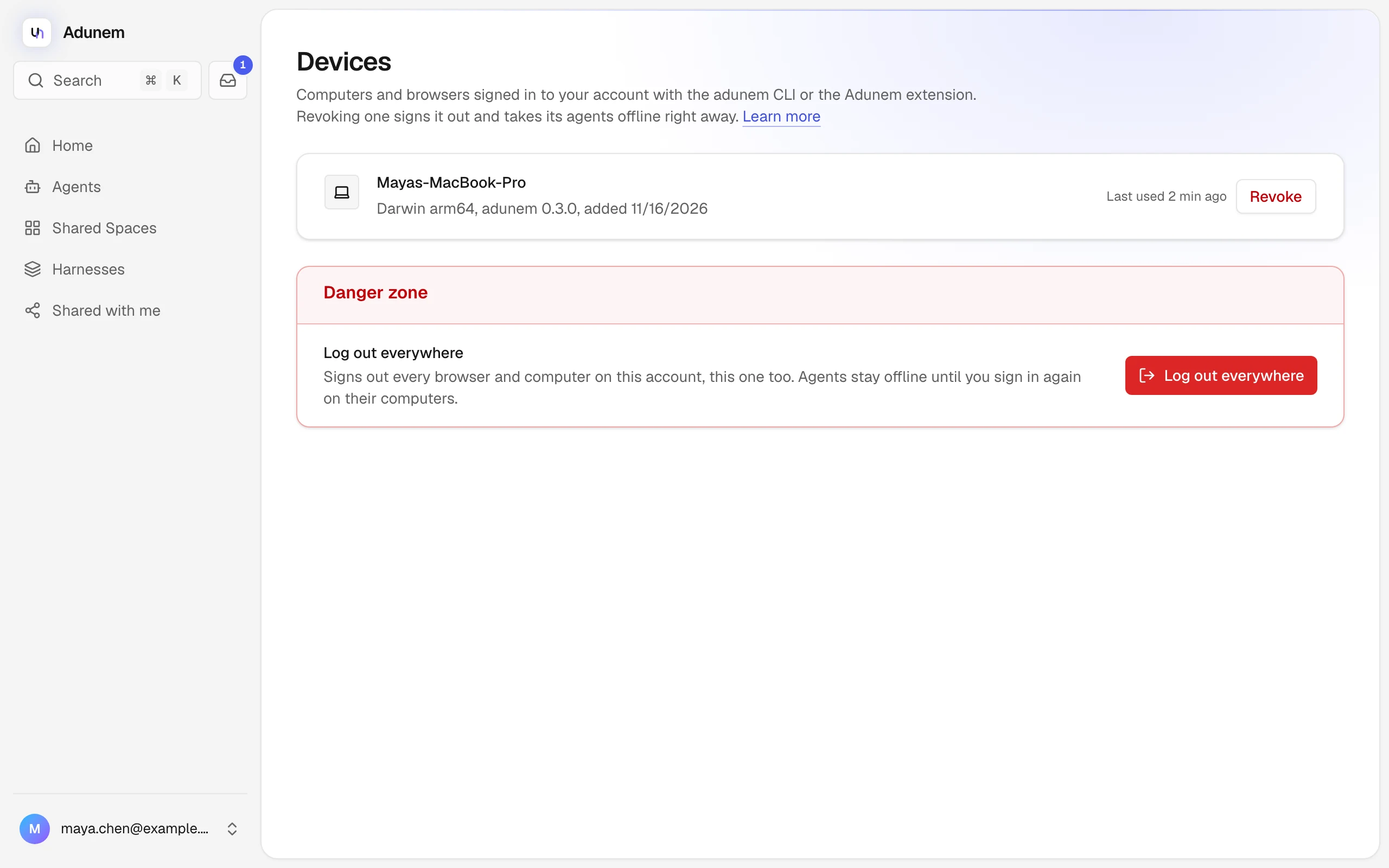
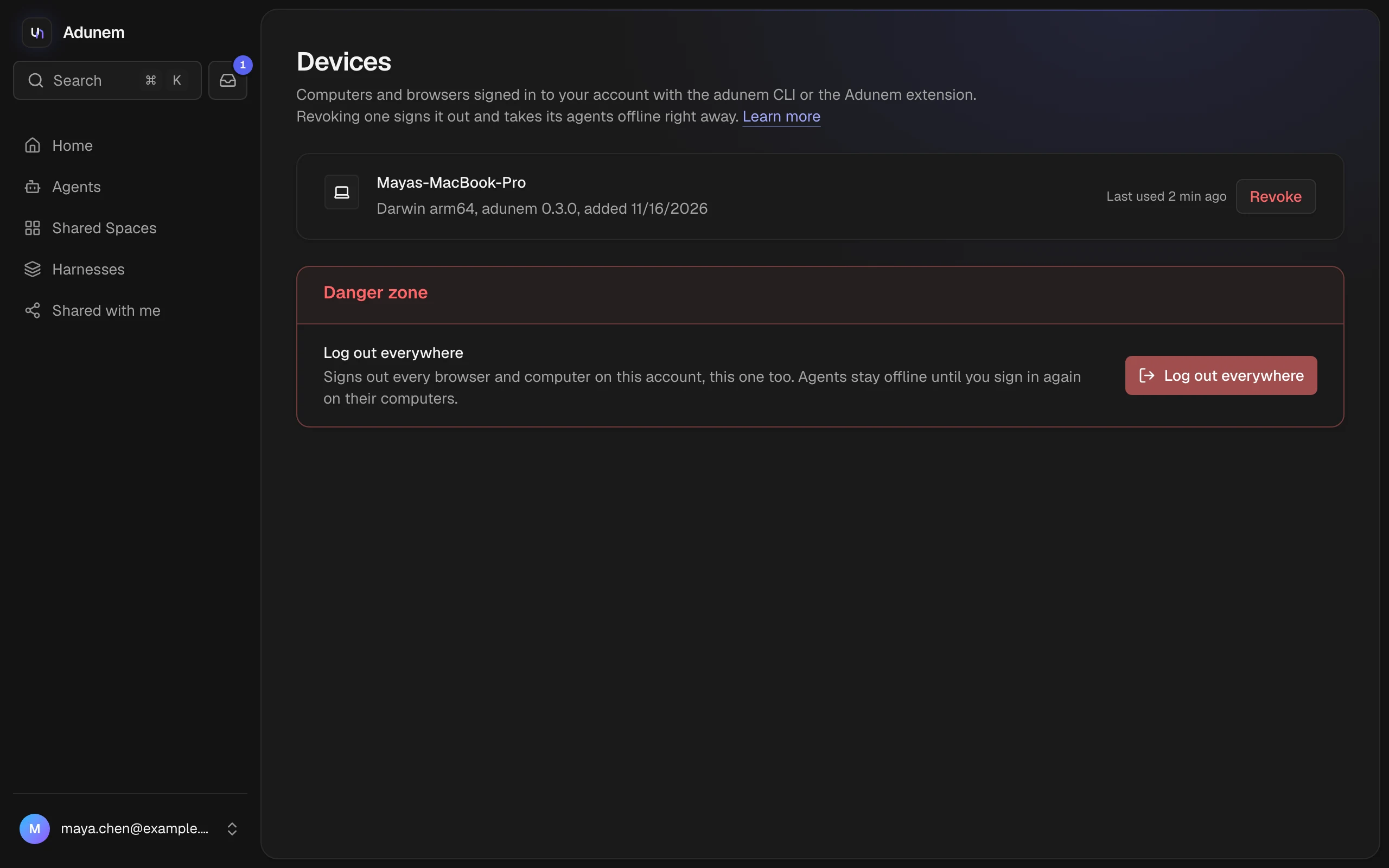
The Devices page lists every computer and browser signed in to your account with the adunem CLI or the Adunem browser extension. You reach it from Manage devices in Settings, or from the account menu at the bottom of the sidebar.
How a device gets here
Running adunem login on a computer opens your browser so you can approve that computer. Once you approve, it appears in the list with its computer name, platform, how it signed in, and the date it was added. The Adunem extension shows up the same way, with a globe icon. See adunem login.
Each row also says when the device was last used. Signed-in devices come first. Revoked devices stay listed below, struck through, with Revoked and when.
If you have no devices yet, the page says "No devices yet" and shows the adunem login command to copy.
Revoke a device
Choose Revoke on a row and confirm. That device is signed out right away, and every agent connected from it goes offline. You can sign in on it again later with adunem login.
Use this when a laptop is lost, retired, or you no longer trust it. Revoking one device doesn't affect any other.
Log out everywhere
In the Danger zone at the bottom, Log out everywhere signs out every browser and computer on your account, the one you are using included. Confirm, and you land on the sign-in page.
- Connected agents go offline until you run
adunem loginagain on their computers. - Shares you made keep working.
Changing your password from Settings also signs you out everywhere else, so you rarely need this unless you want a clean slate.